|
Most Age game players out there have preferred game scenarios and settings. You may enjoy playing Continental, 2.0 speed, fast civilizations, free-for-all, etc. But sometimes getting everyone to agree on game settings can be a little challenging. So we've customized a few game rooms by creating pre-defined room parameters and added a few new features on the Zone game launchpad, which allows you to choose game settings in advance. We've also activated Restore game rooms where you can save an Age II game in progress and restore it for play at a later date.
In pre-defined game rooms, some game settings are pre-selected and locked down. For example, if you're entering a death match game room, then you will be playing a death match game. You can also select your Age game settings in the Zone launchpad before starting the game. Or, if you want to play a previously saved game, then jump into a Restored game rooms, and load up your saved game. These new game rooms and features let you quickly find and join the game type you love to play.
Here's how the Pre-Defined and Restore game rooms work!
Pre-Defined Game Rooms
Regicide and death match are the two pre-defined Age II game rooms; which means, when you enter a regicide game room, the game type is automatically locked to regicide and you will be playing a regicide game. You can still choose the map size, difficulty, population, etc. The same is true for the death match game room.
Hosting in the pre-defined game room
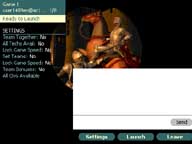
When you're hosting a new pre-defined game, you'll see a list of Age game settings listed to the right on the game launch pad. Before you launch the game, you can set and lock the game settings from the launch pad. This will update the settings list on the left. You'll definitely want to use the chat feature to ask other Zone players their preferred Age 2 game settings.
|
|
|
To select the game settings from the launchpad:
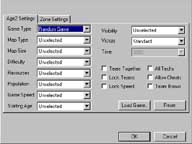
1. Click Settings. This will bring up the Zone Game Settings window with the Age II settings list.
|
|
|
|
2. Select the Age II game settings you and your players have agreed on: map type, map size, difficulty, resources, population, game speed, etc. In pre-defined game rooms, some of the settings will be locked, and you will not be able to change it. For example, if you entered a death match game room, then the game type will already be set to death match.
|
Note: Once you launch Age II with your selected game settings, you will not be able to make any changes in the Age II Multiplayer screen, except for the unselected game settings. For example, in the launchpad, if you choose an Arabia map type but didn't select the size, then the map type will be locked but you will still be able to select the map size in the Age II multiplayer screen. Check boxes for team together, lock teams, lock speed, all techs, allow cheats, and team bonus, are disabled within the Age II multiplayer screen, so you must choose those settings from the Zone launchpad.
3. Click the Zone Settings tab to enter a game description, maximum number of players, block quick joiners, or to set a private game.
4. After you've chosen all your settings, go back to the Age 2 Setting tab, and click OK to confirm the settings and return to launchpad, or click Reset.
5. When all players are ready to go, click Launch to begin!
6. And the next time you enter same game room and you're the host, the your select game settings from the previous game will automatically be set and posted on the launchpad!
When the host launches a game in any of the Age II game rooms, wait a few moments for the game to start. This allows the game settings to synchronize between players.
In the other Age II game rooms that are not pre-defined, you will also be able to select the Age II settings in advance from the launchpad.
Restore Game Rooms: Save and Load Previous Games
There are a few game rooms especially created for you to play previously saved games. This is really cool! Because if you and your buddies are playing a long drawn out game with no end in sight, then save it and you can pick up where you left off later.
Before you load a saved game, read these important requirements:
- Make sure the player names in the saved game match the Zone IDs. For example, if the name you used in your Age II game name is Rat_Attack, then your Zone ID name must be Rat_Attack. This is because when you're loading your saved game on the Zone, the game will be looking for your Rat_Attack name. If your Zone ID name is different from the name you used in the saved game, then the game will not launch. Therefore, if you think you're going to be playing a saved Age game on the Zone, use your Zone ID name for your Age player name.
- You can't join someone's saved game if you weren't one of the original players.
- To play saved free-for-all games, you need at least two original players from the saved game. In team games, you need at least one player from each team from the previously saved game. Having two players from the same team won't work.
- In a saved game, if you were defeated, you will not be able to resume the game.
- If you resigned and did not save the game, you will not be able to play.
- Only the player hosting in a game room can load a saved game. Joiners do not have the option to load a saved game.
To load a saved game:
- Click Settings in the game launchpad. This will bring up the Zone Game Settings window with the Age 2 settings list.
- Click Load Game.
- Select the game from the “File to load” drop-down box.
- Click OK.
- Click OK in the Zone Game Settings window.
- Click Launch to start the game.
|